STARTER GUIDE
GET RUNNING IN ABOUT TWENTY MINUTES
From license key to first verified backup.
This guide walks you through everything from opening the welcome email to confirming your first successful backup and running a test restore. Follow it once, and the rest of using VaultGuard is just letting it run.
You should have received a welcome email containing your license key and the download link. If you haven't, check your spam folder; if it's still not there after ten minutes, email customerservice@informationsecuritykentucky.com and I'll get you sorted out.
This guide covers twelve steps. Most take a minute or two. The app walks you through the important ones itself on its Getting Started page, so this guide mostly tells you what to expect at each point and why it matters.
Total time: about fifteen minutes of clicking, then an hour or more while VaultGuard runs your first backup chain in the background and you do something else.
What a system image is and why it’s the thing you want.
Step 1: Download VaultGuard Backup
Click the download link in your welcome email, or visit the download page directly.
The file is VaultGuardBackupV3.7.0.exe. It's a single signed Windows executable. There's no installer wizard, no setup chain, nothing else to download.
Running it from your Downloads folder is fine. The first time it runs, VaultGuard copies itself to C:\VaultGuard\Backup and opens from there. That's where it lives from then on.
Step 2: Verify the download (optional but recommended)
VaultGuard Backup is a security tool. Always verify a security tool's authenticity before running it. This sounds technical, but it's a right-click and a quick look. About 30 seconds total.
How to check:
Find VaultGuardBackupV3.7.0.exe in your Downloads folder.
Right-click the file and click Properties.
Click the Digital Signatures tab.
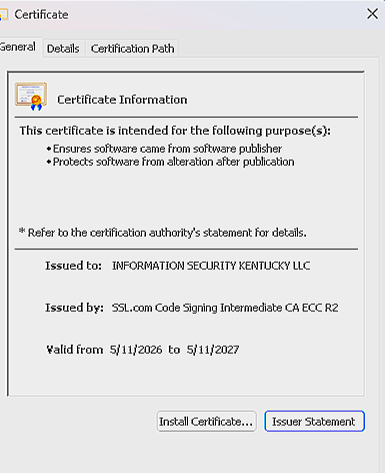
You should see Information Security Kentucky LLC listed as the signer. Click that line, then click Details.
The signature should say "This digital signature is OK."
If the signature is valid and shows Information Security Kentucky LLC as the signer, you have an authentic VaultGuard file. It came from me, hasn't been modified since I signed it, and is safe to run.
If the Digital Signatures tab is missing, shows a different signer, or says the signature is invalid, do not run the file. Email customerservice@informationsecuritykentucky.com and we'll figure out what happened.
For the more technical: the download page lists the SHA-256 hash for the current release. Open PowerShell, go to your Downloads folder, and run Get-FileHash .\VaultGuardBackupV3.7.0.exe -Algorithm SHA256. If the result matches the hash on the download page, the file is authentic. The signature check above is the simpler option for most people.
Step 3: Run VaultGuard for the first time
Double-click VaultGuardBackupV3.7.0.exe.
You may see a Windows SmartScreen warning that says "Windows protected your PC." This is a side effect of being a newly signed application. Windows hasn't built up enough reputation for the file yet to skip the warning. It does not mean the file is malicious. If you see it, click More info, then click Run anyway. This warning goes away on its own as more people install VaultGuard.
Windows will then ask for administrator permission. VaultGuard needs it because it works with wbadmin (Windows' built-in backup tool), Windows Task Scheduler, and Windows Defender, all of which require it. Click Yes.
VaultGuard then:
Copies itself to C:\VaultGuard\Backup and restarts from there.
Creates its working folder at C:\ProgramData\VaultGuard\Backup with locked-down permissions. Your settings, records, and log live there.
Puts shortcuts on your Desktop and in the Start Menu.
Opens the license screen.
Step 4: Enter your license key
The first screen is titled Activate Your License. It says: "Enter your license key below. If you don't have one, start a free 14-day trial or purchase a subscription."
Copy your license key from the welcome email. It's six groups of letters and numbers separated by hyphens, with the last group shorter than the rest (something like XXXXXX-XXXXXX-XXXXXX-XXXXXX-XXXXXX-XX).
Paste it into the License Key box and click Activate License.
A common gotcha: copying from email sometimes grabs a space at the beginning or end. If activation fails, delete what's in the box, click and drag across the key in the email so only the key itself is highlighted, and copy it again.
VaultGuard checks the key against the license server. If everything's right, the app opens on its Getting Started page.
If you don't have a key yet, the Start Free Trial button explains how to request a trial key from the website. The trial is 14 days, no credit card required.
Step 5: Pick the drive your backups will go to (Getting Started, step 1)
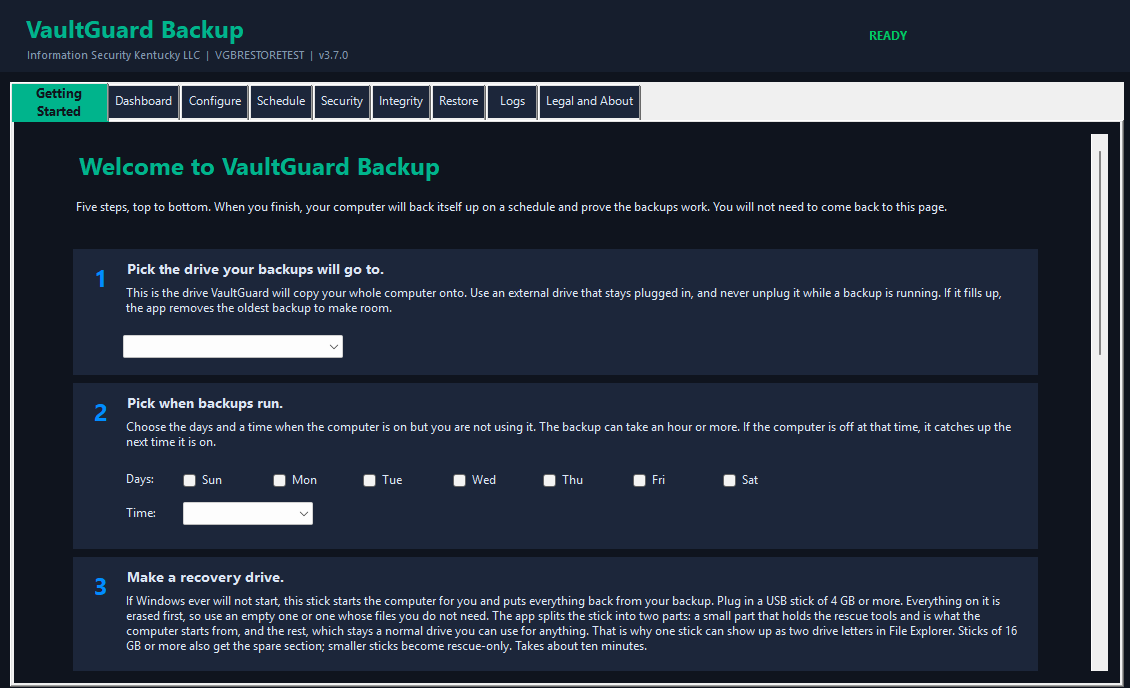
The Getting Started page has five numbered steps, top to bottom. This guide's Steps 5 through 9 follow them in order.
This is the most important decision you'll make. The backup drive is where a complete copy of your computer goes.
Use an external drive that stays plugged in. Never unplug it while a backup is running. Get one that's at least 1.5 to 2 times the size of the data on your computer, because VaultGuard keeps more than one backup version. If the drive fills up, the app removes the oldest backup to make room.
The drive should be formatted as NTFS. FAT32 can't hold large files and will break a system image. exFAT works but NTFS is what I recommend.
A second internal drive or a network share also works as a backup target, but an external drive that isn't your main drive gives you the best protection if something goes wrong with the computer itself.
Pick your drive from the dropdown under step 1. If it isn't listed, plug it in, close VaultGuard, and open it again. The Getting Started page comes back every time until you've saved, and the drive will be there.
Step 6: Pick when backups run (Getting Started, step 2)
Check the days you want and pick a time when the computer is on but you're not using it. The backup can take an hour or more. Most people pick something like Sunday at 2:00 AM.
If the computer is off at the scheduled time, VaultGuard catches up the next time it's on. You don't have to babysit it.
For most people, one or two days a week is the right balance: often enough that you don't lose much if something goes wrong, not so often that it wears on the drive. The rest of the chain (fingerprint, check, restore test) runs on its own after each backup, so you only have to pick the backup days here.
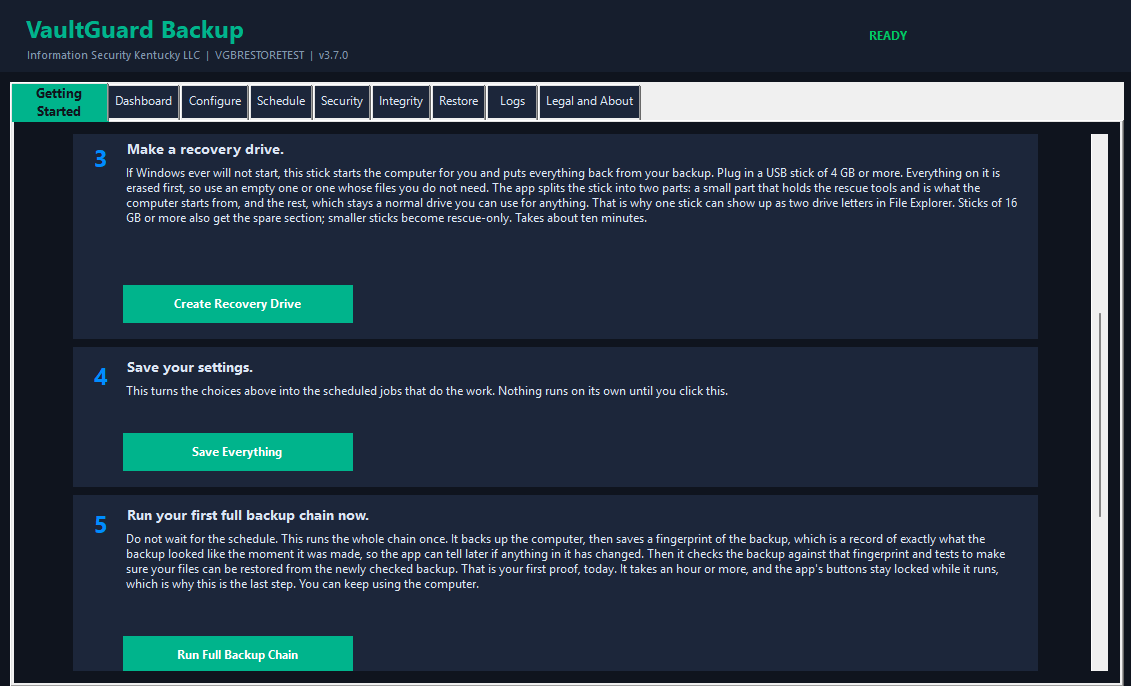
Step 7: Make a recovery drive (Getting Started, step 3)
If Windows ever won't start, this USB stick starts the computer for you and puts everything back from your backup.
Plug in a USB stick of 4 GB or more. Everything on it is erased first, so use an empty one or one whose files you don't need. Click Create Recovery Drive and follow the prompts. It takes about ten minutes.
Two things that look odd but are normal: the stick gets split into two parts, a small one that holds the rescue tools and is what the computer starts from, and the rest, which stays a normal drive you can use for anything. That's why one stick can show up as two drive letters in File Explorer. Sticks of 6 GB or more get that spare section; smaller sticks become rescue-only.
Label the stick and keep it somewhere you'll find it. You can make another one any time from the Restore tab.
Step 8: Save your settings (Getting Started, step 4)
Click Save Schedule. This turns your choices into the scheduled jobs that do the work. Nothing runs on its own until you click this.
If the app tells you it can't save because no drive is selected, go back to step 1 on the page and pick one.
Step 9: Run your first full backup chain (Getting Started, step 5)
Don't wait for the schedule. Click Run Full Backup Chain.
This runs the whole chain once, right now:
It backs up the computer.
It saves a fingerprint of the backup, which is a record of exactly what the backup looked like the moment it was made, so the app can tell later if anything in it has changed.
It checks the backup against that fingerprint.
It tests that your files can actually be restored from the checked backup.
That last part is your first proof, today, that your backup is real and not just a hope.
The chain takes an hour or more. The app's buttons stay locked while it runs, which is why this is the last step on the page. You can keep using the computer, though anything disk-heavy will be slower than usual. The Logs tab shows what's happening, and during the long stretches it adds a progress line every fifteen minutes or so, so you can see it's still moving.
When the chain finishes, click Go to Dashboard. The big number there is your Safety Score. It tells you how safe your files are right now and what to do if it drops.
Step 10: Keep a second copy somewhere else (recommended)
One drive can fail, get stolen, or burn with the building. A second copy on a different drive means you still have your files.
The copy can go anywhere you can pick a folder: a second external drive, a network drive, or a cloud sync folder such as OneDrive, Google Drive, or Dropbox. When in doubt, a second external drive is the simplest choice.
If you use a cloud folder, know two things. The app copies your backup into that folder and confirms it's complete there; how fast the folder then uploads to the cloud is up to your provider and your internet, and can take days for a large backup. Some providers also refuse very large single files, so a big backup may never fully upload.
To set it up:
Go to the Configure tab and find Backup Copy Destination.
Pick the drive or folder for the copy. If you're using a cloud folder, click Check Cloud Storage to confirm the folder is actually syncing.
Go to the Schedule tab and pick the days the copy should run. Pick days when your main backup isn't running.
Click Save Everything on the Dashboard Tab.
From then on, VaultGuard copies each finished backup to that second location, checks the copy against your original, and tests a restore from it, the same way it does for the main backup.
Step 11: Set up email alerts (optional but recommended)
VaultGuard can email you when a scheduled backup, check, copy or restore test fails, and when someone enters the wrong passphrase too many times. It never emails to say things went right; silence means every task did its job.
You don't need to set up an email account or any server details. The alerts come from me, through a managed relay, to the address you enter.
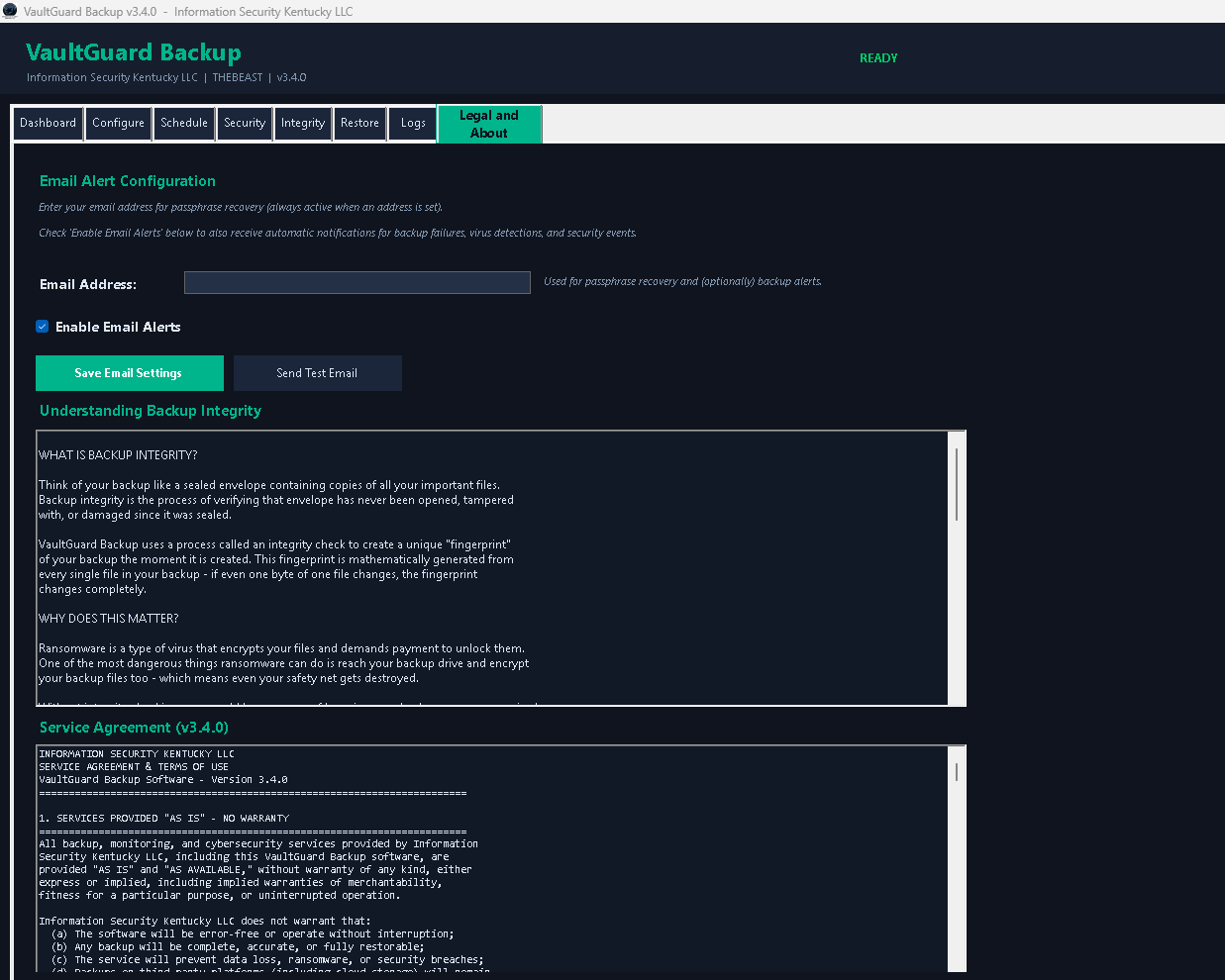
Go to the Legal and About tab and find Email Alert Configuration.
Enter the email address where alerts should go (usually your own).
Check Enable Email Alerts.
Click Save Email Settings.
Click Send Test Email and confirm the message arrives.
Two things always send once an address is saved, even if Enable Email Alerts is unchecked: the passphrase recovery email, if you ever set an administrator passphrase and get locked out, and the alert that goes out when someone enters the wrong passphrase too many times. Those are the ones you can't afford to silence yourself out of. That's on purpose.
The contents of alert emails pass through my relay on the way to your inbox. The contents of your backups never leave your computer. The full disclosure is in the Privacy Policy. If your business has rules that prohibit alert messages from passing through a third party, leave email alerts off.
Step 12: Restore a file yourself
The chain already ran a restore test in Step 9. This step is you doing one by hand, so that the day you actually need a file back, you've done it before and it's not scary.
Go to the Restore tab.
Under Check Backup Status, click Check For My Backups. It lists the backup versions on your drives.
Under Restore Individual Files or Folders, pick the backup version to restore from.
Use Option A if the file is still on your computer: click Browse next to Item to Restore and pick it where it lives now. Something easy, like a document on your Desktop, is a good first test. Use Option B if the file is gone or you don't know where it was: click Browse Backup Contents to browse the backup like a folder tree or search it by name.
Leave Restore To at its default, C:\RestoredFiles. Restoring next to the original instead of on top of it lets you compare the two.
Click Restore Selected Item. VaultGuard checks the backup against its fingerprint first, then restores the file. If you set an administrator passphrase, it asks for it.
Open the restored file from C:\RestoredFiles and confirm it matches the original.
If the file opens and matches, you've just done the thing most people never do: taken a file back out of a backup and confirmed it's whole. Every link held, the drive, the fingerprint, the restore, and your data. Do it again any time you like, with a whole folder or from your second copy; it never touches the originals, and it's the fastest way to stay sure.
You're done
VaultGuard Backup is set up, your first backup is on the drive, and you've proven it restores. From here on it runs on its schedule, and the Getting Started page won't show again.
A few things worth doing in the next week or two:
Check the Dashboard after your first scheduled backup. The Safety Score should be high, and the dashboard tells you what to do if it isn't.
If you set up email alerts, make sure the test email arrived. If a backup ever fails, that's how you'll hear about it.
Explore the Security tab when you're ready. An administrator passphrase protects your settings from being changed, and two-factor login adds a second lock. Neither is required, but both are there.
Read Step 3 on the Restore tab, Full System Image Restore, before you need it. It's the walkthrough for putting a whole computer back, either from Windows or from the recovery drive you made in Step 7.
Help
Anything in this guide unclear or not working? Email customerservice@informationsecuritykentucky.com and I'll either help you directly or update this guide so the next person finds the answer faster.
For more in-depth questions, the Documentation overview lists every topic, and the Support page covers the full support process.
Back to Documentation · VaultGuard Backup product page · Email customer service
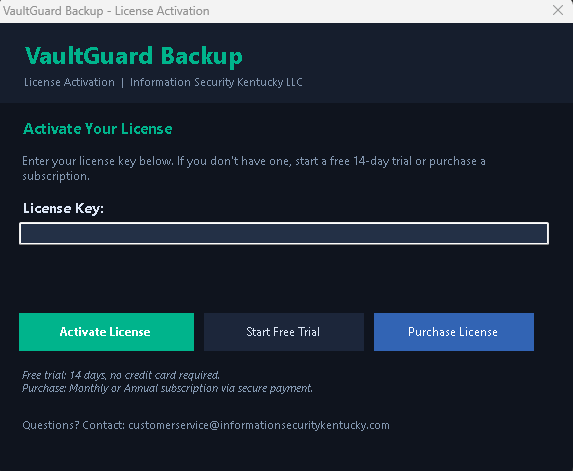
See steps 1-3 to the left.
See steps 3-5 to the left.