VaultGuard Backup for Technicians
If you look after computers for other people, you already know the problem. Every machine says its backup is fine until the day you need it. And you find out which ones are behind when the client calls, not before. You might run a small MSP or a computer repair shop, work as a freelance IT tech, or be the one person at the office everybody calls when something breaks.
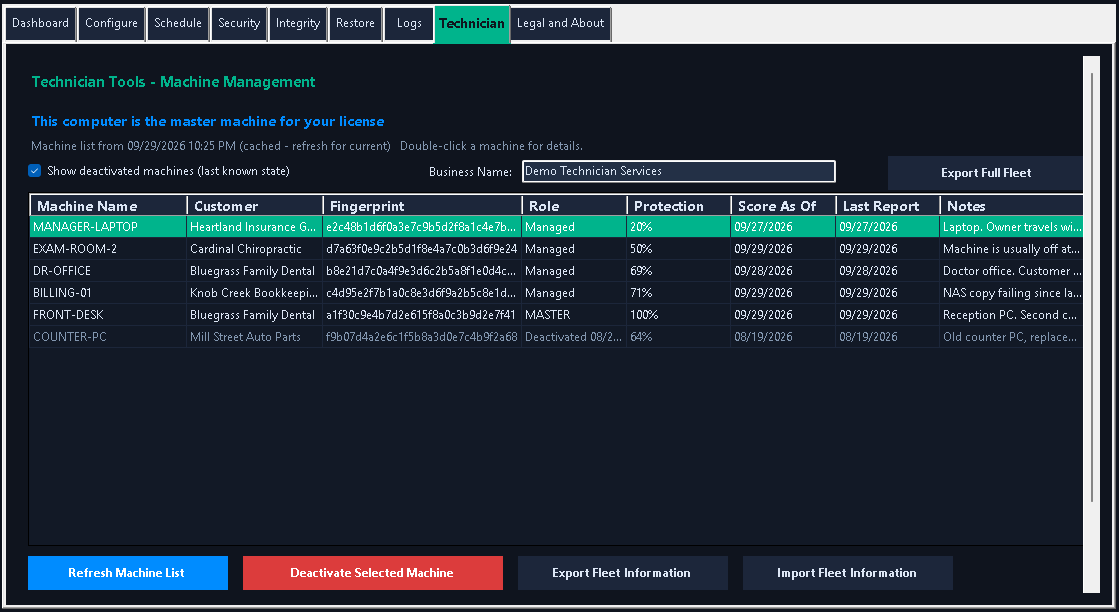
The Technician license gives you one screen with every computer you protect on it, worst first, so you know where to go before anyone has to call you.
One screen, every computer
The Technician tab lists every computer on your license with:
the machine name and the customer it belongs to
its protection score, sorted worst first
when that score was figured, and when the computer last checked in
your own notes
Those two dates tell you different things. A fresh check-in with an old score means someone just needs to open the app. A computer that hasn't checked in at all is the one to go look at, because it's off, broken, or its tasks are gone.
Each computer checks in once a day
Every computer on your license sends a short status report once a day. It figures its score fresh at that moment. If a backup or check is still running, it waits until things are quiet so the report includes it.
The report covers all nine tasks: the backup, the fingerprint, both checks for changes, both restore tests, the second copy, the age check and the settings check. For each one it includes how it last went, when it last succeeded, why it failed if it did, and when it runs next. "Next run is tonight" can save you a drive.
Double-click any computer for the full picture
Opening a computer shows its score in the same colors as its own dashboard, a card for every task, where its backups and second copy live, how many versions it can restore, its last restore test results, and whether it has a recovery drive.
There's a place for the customer's name and your notes on each computer. Notes stay with the computer even if it gets reinstalled.
Reports with your business name on them
From any computer's view, export a Protection State report to hand your client. Your business name goes across the top, with “Powered by VaultGuard Backup” in smaller type underneath, and the client’s name on the line below. It shows the score, what's protected and how recently it was proven, all nine tasks, and the restore test results.
You can also export a fleet roster: every computer, its score, and its task status in one printable page.
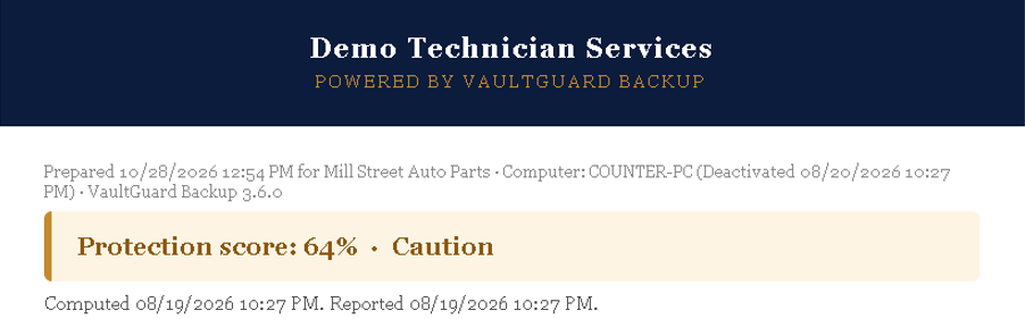
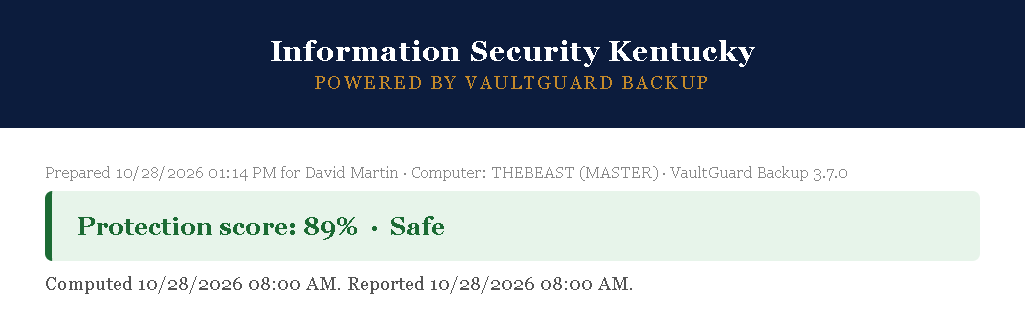
The same report for two different businesses. The name you enter is the one your clients see.
When a computer leaves
When a client replaces a computer or stops service, deactivate it from your main computer. That frees the seat for the next machine. If you want, the grid keeps that computer's last known state, so if the client comes back, you still know where things stood.
Built so a client's computer can't manage your fleet
All your machines share one license, and only one of them can manage the rest: your main computer.
The first computer that claims the main role gets it. Claiming it gives you a one-time recovery code. Print it and keep it with your business records.
Every fleet action, like deactivating a computer, exporting or importing, asks for your passphrase every time, even if you just entered it.
Your clients' computers show that they're managed by their technician's main computer. They can't deactivate anything.
If your main computer dies, your recovery code moves the role to a new one. Your customer names and notes can be exported (behind your passphrase) and imported on the new computer.
Your customer names and notes are stored encrypted on your main computer. They never leave it.
What gets sent, and what doesn't
The daily check-in sends the computer's name, its score, the status of each task, where its backups are kept (like "E:"), how many versions it has, and its restore test results. It's what you'd see on its dashboard.
It never sends files, file names, or anything inside the backups. The backups stay on each client's own drive, and in their second copy, wherever they chose to put it.
What it doesn't do
So you can decide honestly:
Windows only. Windows 10 and 11.
Up to 5 computers per license, at a flat rate.
It isn't remote control. You'll still use your own remote tool to get into a machine.
It's daily, not live. The grid shows each computer as of its last check-in, usually done at 8:00 AM unless the computer is off or unavailable.
No cloud storage included. Each client's backup goes to a drive they own, with a second copy on another drive, a network share, or a folder their own cloud service syncs.
It's a small company. When you email support, you're emailing me.
Pricing
Technician: $49.99 a month or $499.99 a year, for up to 5 computers. Every feature is included, with nothing held back for a higher tier.
Looking after more than 5 computers? Email me and we'll work out what fits.
Try it free for 14 days, no card needed. If you stop using it, every backup it made still restores with Windows' own recovery tools.